
TL;DR
The GOOG 50/200 trend example enters when the shorter average is strictly higher and exits when it is strictly lower, concentrating its stock exposure in one company. Four independent historical tests include a 6.01% losing window. Observe a separate paper book before the Alpaca transition. Review the destination account and disabled rules, then configure live evaluation timing separately; porting does not copy the paper schedule.
Understand the worked rules
Enter
GOOG SMA50 > SMA200 and no GOOG holding.
Size
Buy whole shares with 100% of available buying power.
Exit
GOOG SMA50 < SMA200 and a positive GOOG holding; sell the whole position. Equality triggers neither rule.
Observe
Daily indicator windows, $10,000 historical starting capital, cash dividends and 0.1% stock transaction fees.
Inspect
Time invested, long holding periods and drawdown. This one-stock teaching example concentrates its exposure in GOOG.
Show the table · 5 rows, 2 columns
| Decision | Rule |
|---|---|
| Enter | GOOG SMA50 > SMA200 and no GOOG holding. |
| Size | Buy whole shares with 100% of available buying power. |
| Exit | GOOG SMA50 < SMA200 and a positive GOOG holding; sell the whole position. Equality triggers neither rule. |
| Observe | Daily indicator windows, $10,000 historical starting capital, cash dividends and 0.1% stock transaction fees. |
| Inspect | Time invested, long holding periods and drawdown. This one-stock teaching example concentrates its exposure in GOOG. |
No matching rows. Clear the filter to see all records.
Read the completed historical example
The same GOOG trend rule ran on four independent historical windows. Each window starts again with $10,000; the rows are separate tests. Read the losing window alongside the stronger ones and follow how long the strategy held GOOG.
Show the table · 4 rows, 5 columns
Scroll sideways to compare all columns. Select a heading to sort.
| 2023-03-30 | 2023-12-06 | 26.23% | 13.19% | 0 |
| 2023-12-07 | 2024-08-14 | 18.61% | 18.27% | 0 |
| 2024-08-15 | 2025-04-23 | -6.01% | 21.46% | 4 |
| 2025-04-24 | 2025-12-31 | 70.86% | 8.67% | 0 |
No matching rows. Clear the filter to see all records.
Create and test this example in Aurora
Open the filled-in request, review the rules and send it in Aurora when ready. Continue in the same conversation through creation, backtesting and paper observation. Each step returns an artifact you can inspect before continuing.
Observe it in paper trading
After testing your frozen version, ask Aurora to prepare a new paper deployment from the saved draft. Read back the new simulated portfolio identity and open it in Portfolios. Log the expected signal, actual order status, holdings, fees and any rule revision. Keep the historical backtest, paper history and live account history labeled separately.
Connect and select your Alpaca account
Open Alpaca account connection below. Select Connect Alpaca, then Connect my existing account. Complete two-factor authentication if prompted. In Important Disclosures, select I understand and agree, then Connect Alpaca and finish authorization on the broker's site. Return to NexusTrade and let Checking connection finish.
Check which Alpaca account environment you authorized, then compare the imported account and buying power with Alpaca. An Alpaca paper account and a NexusTrade simulated portfolio have separate histories. This adapter uses a single account connection.
This example trades whole stock shares. The current NexusTrade adapter also supports fractional stock shares. Verify the imported account identity before attaching the strategy.
Move the paper rules into the live portfolio
Open the paper portfolio
Use the separate paper portfolio created from your saved draft. Open its Deployment Center and select Port to Live.
Select Alpaca and inspect the changes
Read the incoming rules and existing active strategies. The confirmation shows which existing rules will be disabled. Keep the paper source so you can compare later observations.
Confirm the intended deployment
Select Confirm & Port when the comparison is correct. If active strategies already exist, the button reads Disable existing & Port. This confirmation can activate the live target.
Open the returned live portfolio
Select Open live portfolio. Verify Alpaca, the intended account and the imported rules. Review the live target's evaluation mode after porting. OpenClose checks near the session's open and close; Constant checks repeatedly at the chosen interval. Keep the observation interval and evaluation cadence in your test notes. Port to Live copies strategies; it does not copy the paper portfolio's timing settings.
Follow the first signal and know how to pause
Review the live portfolio's trading policy and daily limit in the app. Only you can enable automated order approval through the account application or portfolio settings. Aurora can help inspect the rules and events; it does not enable that policy.
When the trend changes, compare the recorded 50-day and 200-day averages, the position guard and the Filled order. Check the resulting cash and GOOG holding in both NexusTrade and your broker account.
To pause strategy evaluation, open Deployment Center, switch Automated Trading off and choose Save Changes. Check that the same live portfolio is paused. Inspect open broker orders and current holdings separately. For a recurring Aurora review, also pause its schedule in Agents.
Follow one worked path
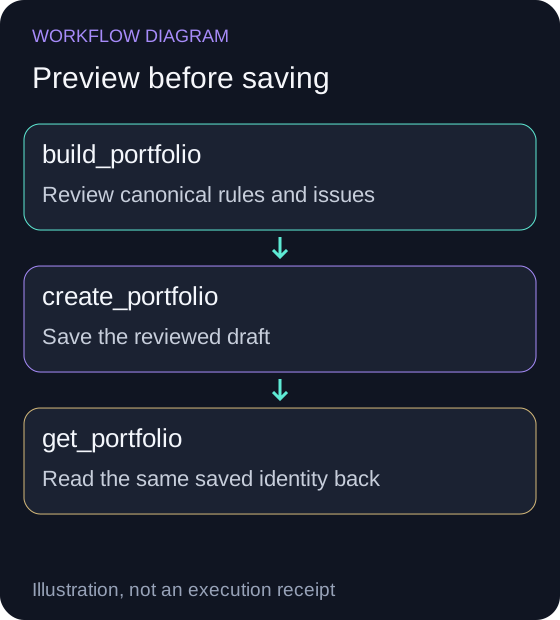
Review this task's exact candidate
Open the prepared Aurora request. Review the candidate rules below, including its entry, position guard, purchase amount and exit. Continue to a saved research draft only after reviewing those rules.
Aurora shows the candidate rules and returns the saved research draft identity after you approve creation. The brokerage connection comes later.
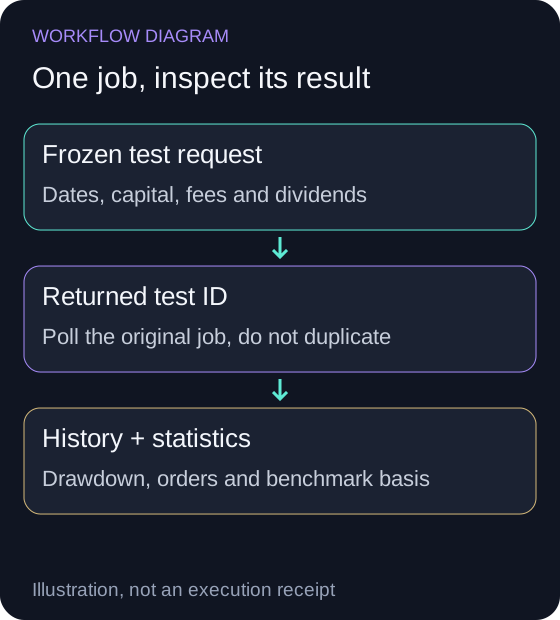
Read historical and paper evidence separately
Follow creation, historical testing and paper observation in the same conversation. Retain the returned saved draft, test and running paper identities.
- 2023-03-30
- Test ends (Eastern): 2023-12-06 · Return: 26.23% · Max drawdown: 13.19% · Closed trades: 0
- 2023-12-07
- Test ends (Eastern): 2024-08-14 · Return: 18.61% · Max drawdown: 18.27% · Closed trades: 0
- 2024-08-15
- Test ends (Eastern): 2025-04-23 · Return: -6.01% · Max drawdown: 21.46% · Closed trades: 4
- 2025-04-24
- Test ends (Eastern): 2025-12-31 · Return: 70.86% · Max drawdown: 8.67% · Closed trades: 0
Each stage has a separate artifact to inspect. A simulation curve is not broker account activity.
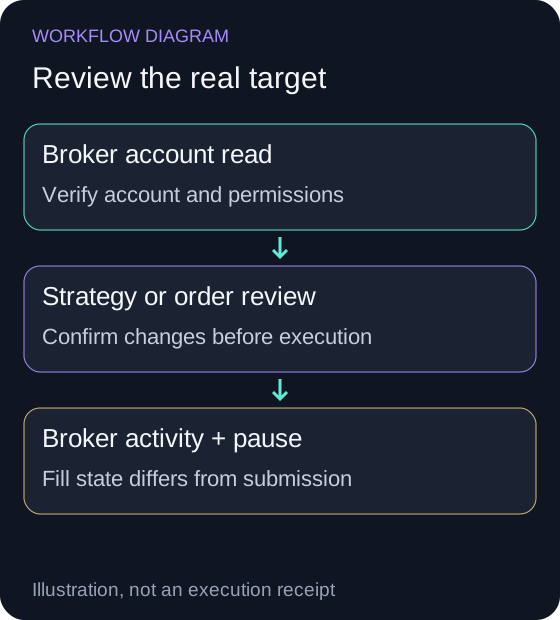
Connect and review the broker target
Connect Alpaca using the account steps below. From the tested Paper portfolio, choose Port to Live and review the added and disabled rules before confirming.
Open Alpaca connectionConfirm & Port can activate the live target. Inspect its account identity, trading policy, orders and active state.
Verify execution and the pause control
Match portfolio events with broker activity. To pause strategy evaluation switch Automated Trading off and Save Changes in the live Deployment Center.
Outstanding broker orders and holdings require their own review; pausing does not automatically sell or cancel them.
No comments yet.