
TL;DR
Open the Robinhood connection page, copy your personal command, and run it on your computer. Confirm your NexusTrade account, then sign in to Robinhood and approve the connection. Once the page says Connected, you can move a tested paper bot into the linked account. The final Port to Live confirmation activates the copied rules, so review the account and rules before confirming.
Before you start
- Sign in to the NexusTrade account you want to use.
- Have your Robinhood login and access to any security code or phone approval it requests.
- Use your own Mac, Windows, or Linux computer for the connection command. You can read this guide on a phone, but run the command on the computer.
- Install the current LTS version of Node.js if you do not have it. Choose the installer for your operating system and follow its prompts. Node.js runs the small connection tool. You do not need to write code.
Robinhood uses a separate Agentic account for trades from an external agent. If Robinhood asks you to finish that account's setup, follow its on-screen instructions. Check the balance and holdings of that account, because they can differ from your other Robinhood accounts. Robinhood explains the account requirement here.
Already connected? Jump to Step 6: choose a tested bot. If you already have a tested paper portfolio, go straight to Step 7: Port to Live.
Step 1. Open the Robinhood connection dialog
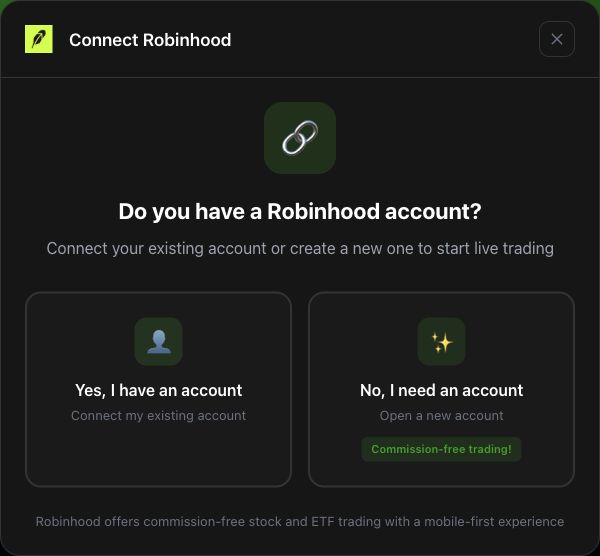
- Open the Robinhood connection page.
- Select Connect Robinhood. Complete NexusTrade's two-factor authentication setup if the app asks. This adds a security check to your login.
- Select Connect my existing account.
- Read Important Disclosures. If you agree, select I understand and agree, then Connect Robinhood.
You should see: a screen titled Run this command on your computer, with a command and a copy button. If the page already says Connected, continue at Step 5.
Step 2. Copy your command and run it on your computer
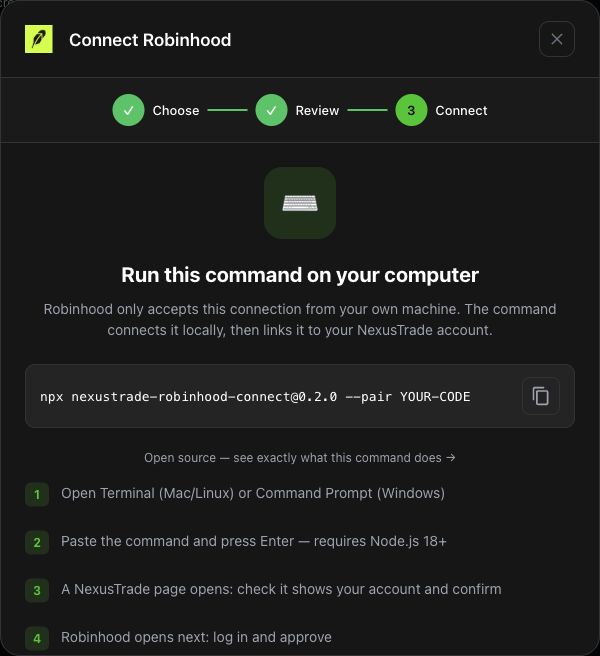
- Select the Copy command button beside the command on your connection screen.
- Open Terminal on a Mac or Linux computer, or Command Prompt on Windows. This is the app where you paste and run a command.
- Paste the copied command and press Enter.
- If an install prompt appears, check that it names nexustrade-robinhood-connect and confirm to continue.
The screenshot shows YOUR-CODE as an example. Your screen supplies your own one-time code. Copy the command from your own signed-in connection page. Keep the terminal and connection page open while you finish.
You should see: a NexusTrade confirmation page open in your browser. The command first checks which NexusTrade account it should link.
If the terminal says npx is not recognized or command not found, install Node.js LTS, close the terminal, open it again, and retry with a fresh command.
Step 3. Confirm the NexusTrade account in your browser and terminal
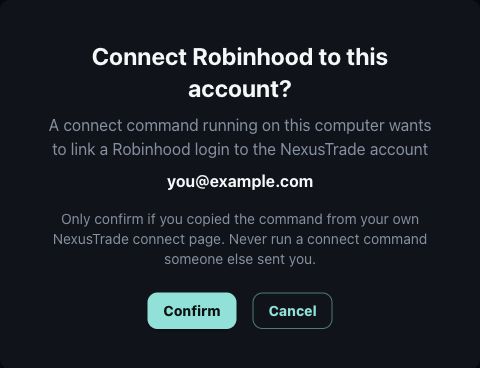
- In the page titled Connect Robinhood to this account?, check the email address.
- If it is your intended NexusTrade account, select Confirm.
- Return to the terminal. It shows the account email again and asks you to type yes.
- Check that email again, type yes, and press Enter.
You should see: Robinhood open in your browser for sign-in and approval.
If the email is wrong, select Cancel. Sign in to the correct NexusTrade account and start again with a new command from that account's connection page.
Step 4. Sign in to Robinhood and finish approval
- Sign in on the Robinhood page that opens.
- Complete any security code or phone approval Robinhood requests.
- Review the connection request and approve it if you want to link the account.
- Complete any Agentic account setup Robinhood requires.
- Return to the terminal and wait for the message Done! Your Robinhood account is connected to NexusTrade.
Return to the original NexusTrade connection screen. If it is still showing the command instructions, select I Ran It so it checks for the finished connection.
You should see: Connected on the Robinhood connection page. If it keeps waiting, keep both windows open and use the troubleshooting section below.
Step 5. Check the connection, balance, and holdings
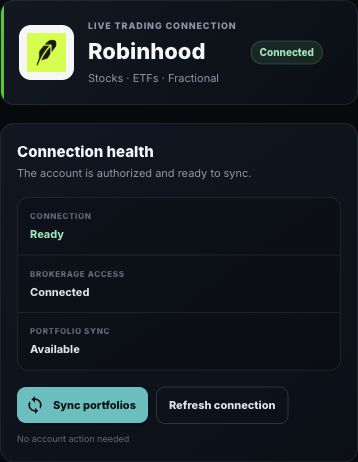
- Look for Connected beside Robinhood and Ready under Connection health.
- Select Sync portfolios to bring the linked account's data into NexusTrade.
- Select Open portfolios and open the imported Robinhood portfolio.
- Compare its account identity, holdings, and buying power with the matching Robinhood Agentic account. Buying power is the amount the broker currently lets that account spend on trades.
You should see: the intended Robinhood account and its current holdings and buying power. If Connection health lists an action you need to take, complete it in Robinhood before continuing.
Your connection is now set up. Continue below when you want to attach a tested bot. Connecting the account and copying trading rules are separate steps.
Step 6. Choose a tested paper bot
A paper portfolio uses simulated money so you can watch your rules run before moving them into a real account. If you already have a tested paper portfolio, open it and continue to Step 7.
If you need an example, the GOOG bot below has two rules. GOOG is Alphabet's stock symbol. RSI is a momentum score from 0 to 100 that the bot reads before making a decision.
Select Create the GOOG example in Aurora to open a filled-in request. Aurora is NexusTrade's AI assistant. Review the request and send it when ready.
You should see: a saved draft and an explanation of its buy rule, sell rule, and trade size. The next two sections take that draft through historical testing and paper trading.
The GOOG example: what the bot would do
- Buy: GOOG's 14-day RSI is below 30, and the portfolio holds no GOOG.
- Trade size: buy whole shares using 100% of available buying power.
- Sell: GOOG's RSI is above 50, and the portfolio holds GOOG. Sell the whole position.
For example, if RSI is 28 and the portfolio holds no GOOG, the buy condition is true. If it later holds GOOG and RSI is 53, the sell condition is true. These numbers illustrate the rules; they are not recorded fills or current market readings.
This example can use all available buying power for one stock. Review that trade size before copying it. If you change the size or another rule, test the changed version separately.
Aurora helps you write and understand the rules. NexusTrade's trading engine checks those saved rules on the schedule you choose.
Step 6a. Backtest the rules
A backtest applies the rules to past prices. It helps you inspect what the strategy would have done during those dates.
Select Test the saved GOOG draft in Aurora, then Copy request. Paste it into the same Aurora conversation as your saved draft. It includes the dates, $10,000 starting balance, daily observations, whole shares, cash dividends, and 0.1% stock fee per fill used by the recorded example. A fill is a completed trade.
The original tests returned 2.85%, -0.36%, -1.61%, and 19.14% across four different periods. Two periods lost money. Expand the table for the dates, largest drops, and number of closed trades.
You should see: a completed test, a value chart, and the trades that produced it. Inspect an entry and exit, the fees, and the largest drop before moving on. These dates are already-viewed development history; choose a separate unused period when evaluating a new version.
Show the table · 4 rows, 5 columns
Scroll sideways to compare all columns. Select a heading to sort.
| 2023-03-30 | 2023-12-06 | 2.85% | 5.00% | 10 |
| 2023-12-07 | 2024-08-14 | -0.36% | 8.77% | 10 |
| 2024-08-15 | 2025-04-23 | -1.61% | 13.33% | 10 |
| 2025-04-24 | 2025-12-31 | 19.14% | 2.83% | 12 |
No matching rows. Clear the filter to see all records.
Recorded GOOG RSI14 historical tests. Max drawdown is the largest percentage drop from a previous peak within that test. These results exclude future AI revisions.
Step 6b. Watch the bot with simulated money
After reviewing the backtest, select Prepare a paper portfolio in Aurora, then Copy request. Paste it into the same Aurora conversation so the assistant can use the draft and test results you just reviewed.
You should see: a new paper portfolio with its own name and link. Open it in Portfolios, check the rules and schedule, and watch its signals, orders, and holdings over time.
Keep your historical test results, forward paper results, and live account activity separate. A backtest uses past prices; paper trading lets you observe new simulated activity as it happens.
Step 7. Review the rules, then select Port to Live
- Open your tested paper portfolio in Portfolios.
- Open its Deployment Center and select Port to Live.
- Choose Robinhood. Select the intended account when the wizard asks.
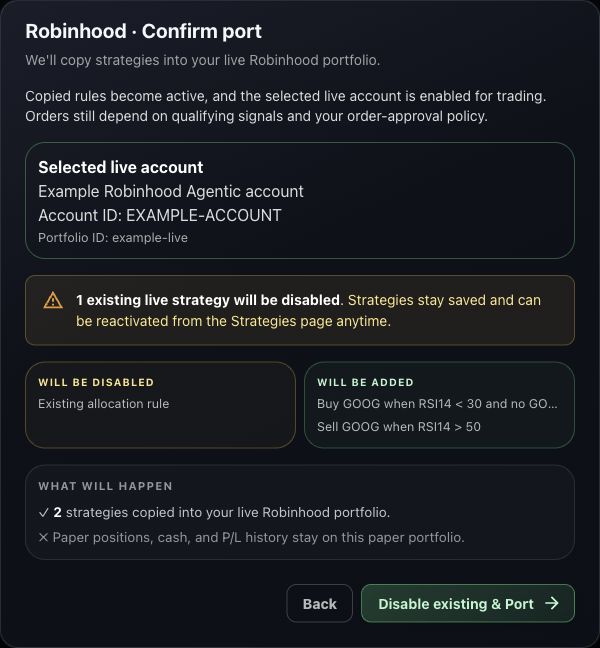
- Read the comparison. WILL BE ADDED shows incoming rules. WILL BE DISABLED shows existing active rules that the port will turn off.
- When the account and changes are correct, select Confirm & Port. If existing live rules will be disabled, the button reads Disable existing & Port.
- Select Open live portfolio after it finishes.
This confirmation activates the copied rules and enables the live target for trading. Orders still depend on a matching signal and your order-approval policy. Stop on the review screen if you only want to inspect the changes.
You should see: the Robinhood live portfolio with your copied rules. The paper portfolio keeps its own positions, cash, and history; those are not moved into Robinhood.
Step 8. Check the live schedule and order approval
In the returned live portfolio, open Deployment Center and review its schedule. Port to Live copies strategies; it keeps the live target's timing settings.
- Open-Close Deployment checks around the market's open and close at the times shown in the app.
- Constant Deployment checks repeatedly at the selected interval during the trading day.
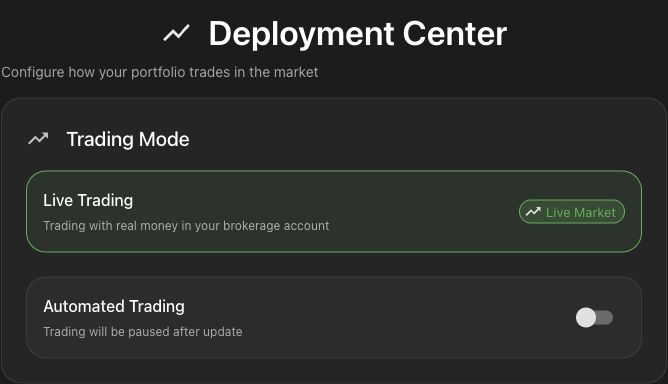
Review Autonomous Trading and the portfolio's Trading Policy. The Automated Trading switch controls whether the rules run. Autonomous Trading controls whether eligible orders can be approved automatically. The app requires account approval for autonomous trading.
You should see: the intended live account, rules, evaluation schedule, and approval policy. Match them to the version you tested. Review any daily trade limit shown in Trading Policy.
Step 9. Follow the first signal and know how to pause
When a rule becomes true, compare the live portfolio's events with the matching Robinhood account's order activity. Check the symbol, buy or sell direction, quantity, and final order status. Filled means the order completed. An active bot can wait without trading while its conditions are false.
To pause the bot:
- Open the live portfolio's Deployment Center.
- Switch Automated Trading off.
- Select Save Changes.
- Check that the same live portfolio is paused.
Pausing stops future rule evaluation. Check open broker orders and current holdings separately; the switch does not cancel existing orders or sell your shares.
If you get stuck
The terminal cannot find npx
Install Node.js LTS, close the terminal, and open it again. Use a fresh command from the connection page.
The pairing code expired
The code works once and expires after 10 minutes. Reopen the connection dialog to get a new command. Copy the complete new command and restart the connection.
No browser opens
The connector supports --print-url. Add a space and --print-url to the end of your copied command and run it again. Open the printed confirmation link in your own browser. That link is private to your run, so keep it to yourself.
The confirmation shows the wrong NexusTrade account
Cancel, sign in to the intended account, and copy a new command from that account's connection page. Never use a command or pairing code another person sent you.
The page keeps saying it is waiting
Check both confirmations: Confirm in your NexusTrade browser page, then yes in the terminal. Finish Robinhood's approval, including any phone prompt or account setup. Look for Done! in the terminal, then select I Ran It in the connection dialog.
Connected is shown, but the portfolio looks empty
Select Sync portfolios and check the linked Agentic account in Robinhood. Its balance and holdings may differ from your other Robinhood accounts. Complete any action listed under Connection health. Avoid moving rules into an account you have not identified.
Port to Live is unavailable
Start from a paper portfolio that has saved strategies. Check that Robinhood is connected, the selected account is eligible, and any requested NexusTrade two-factor setup is complete. Follow the message in the wizard before confirming.
The bot is active but has not traded
Check whether its entry condition is true, whether an evaluation is due, whether buying power is available, and whether an order is waiting for approval. Keep the order's actual status separate from the bot's active status.
If it still fails, keep the error text and which step failed. Never share your pairing code, private confirmation link, password, or security code. The connection dialog's I Need Help button provides instructions for your AI coding tool.
Optional: ask Aurora to review the strategy each week
See the optional weekly research review
After the connection and trading setup are complete, you can add a separate weekly research review. It reads sources and proposes changes for you to inspect.
Review its schedule in Agents before enabling it. Each run uses research credits. Test any changed rules as a new version before applying them to your bot, and pause the research schedule separately if you want those reviews to stop.
No comments yet.